Optimizing the User Experience
Last modified on August 24, 2026 • 13 min read • 2,621 words
Warning
This tutorial’s worked example still points at the archived
gethinode/docsrepository, which tracks an older Hinode release. We are reworking it to use a current, public example site — progress is tracked in gethinode/hinode#2057 . The optimization techniques below still apply; only the specific figures and screenshots may differ from a current build.
Introduction
Hinode includes support for Bootstrap and Font Awesome by default. Although these packages provide many great features, they do increase the size of your site’s assets. This guide illustrates several strategies on how to optimize your Hinode site. We will use the Hinode documentation repository as a case example.
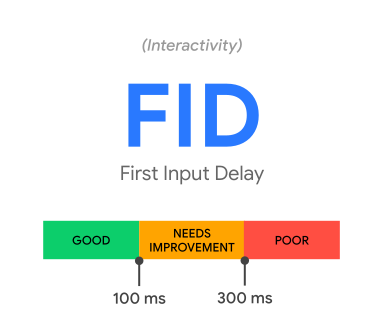
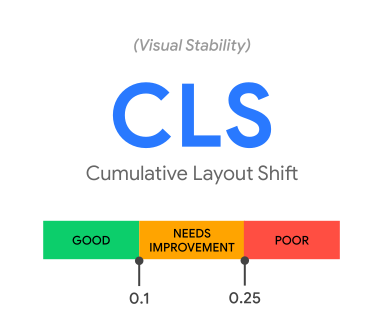
A site generated by Hinode consists of many static files, such as fonts, stylesheets, images, and JavaScript files. The Core Web Vitals are three performance metrics introduced by Google. These metrics are an indication of the real-life user experience of your site. Pagespeed Insights uses these metrics to evaluate the performance of your site.
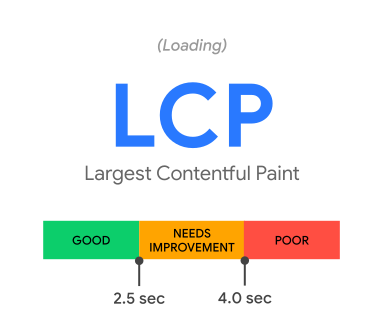
- Largest Contentful Paint (LCP): measures loading performance. To provide a good user experience, LCP should occur within 2.5 seconds of when the page first starts loading.
- First Input Delay (FID): measures interactivity. To provide a good user experience, pages should have a FID of 100 milliseconds or less.
- Cumulative Layout Shift (CLS): measures visual stability. To provide a good user experience, pages should maintain a CLS of 0.1 or less.
Not all files are critical to your user experience. In general, the following static files are considered vital to the rendering of a web page:
- CSS files
- JavaScript files added in the
<head>section - Fonts added from either CDN or a local server
Images, media files, and <script> tags placed at the bottom of the <body> section are treated as non-render blocking resources.
Step 1 - Setting Up the Test Case
We will now use the Hinode documentation site as a real-life case example. We will use Google Chrome to establish the baseline performance and identify opportunities for improvement. If not done so already, download and install Chrome from the official site. Use the following commands to download the latest Hinode docs repository. Be sure to comply with Hinode’s Prerequisites first - this guide requires npm.
git clone https://github.com/gethinode/docs.git && cd docsSince Hinode v3.6 the purge setting defaults to true, so a fresh build already ships purged
CSS. To measure the unoptimized baseline first, temporarily disable purging by adding the
following to config/_default/params.toml (we remove it again in
Step 4
):
[style]
  purge = false
Install the dependencies and start a local web server with the following commands:
npm install
npm run start
Web Server is available at http://localhost:1313/ (bind address 0.0.0.0)
Press Ctrl+C to stop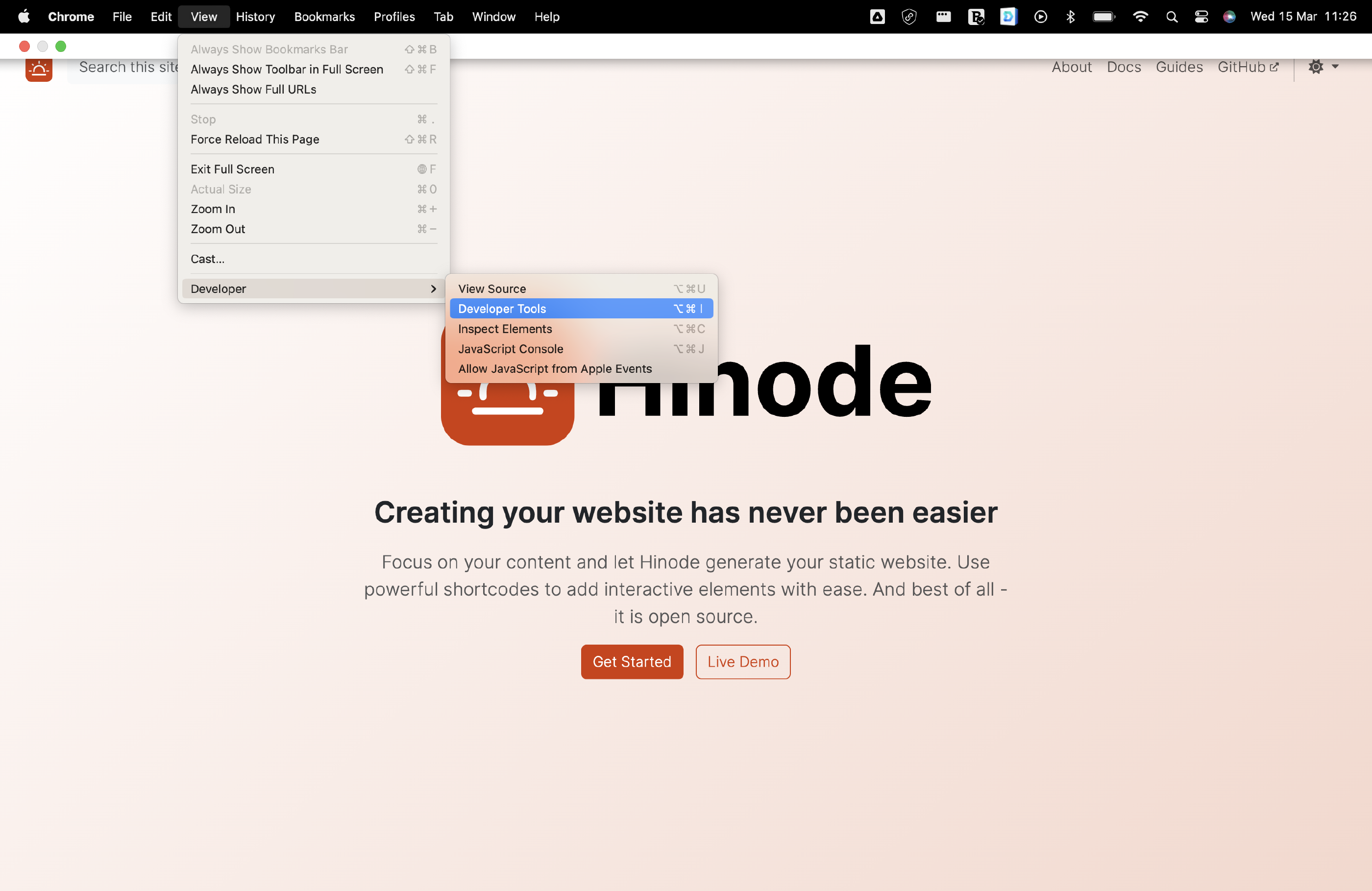
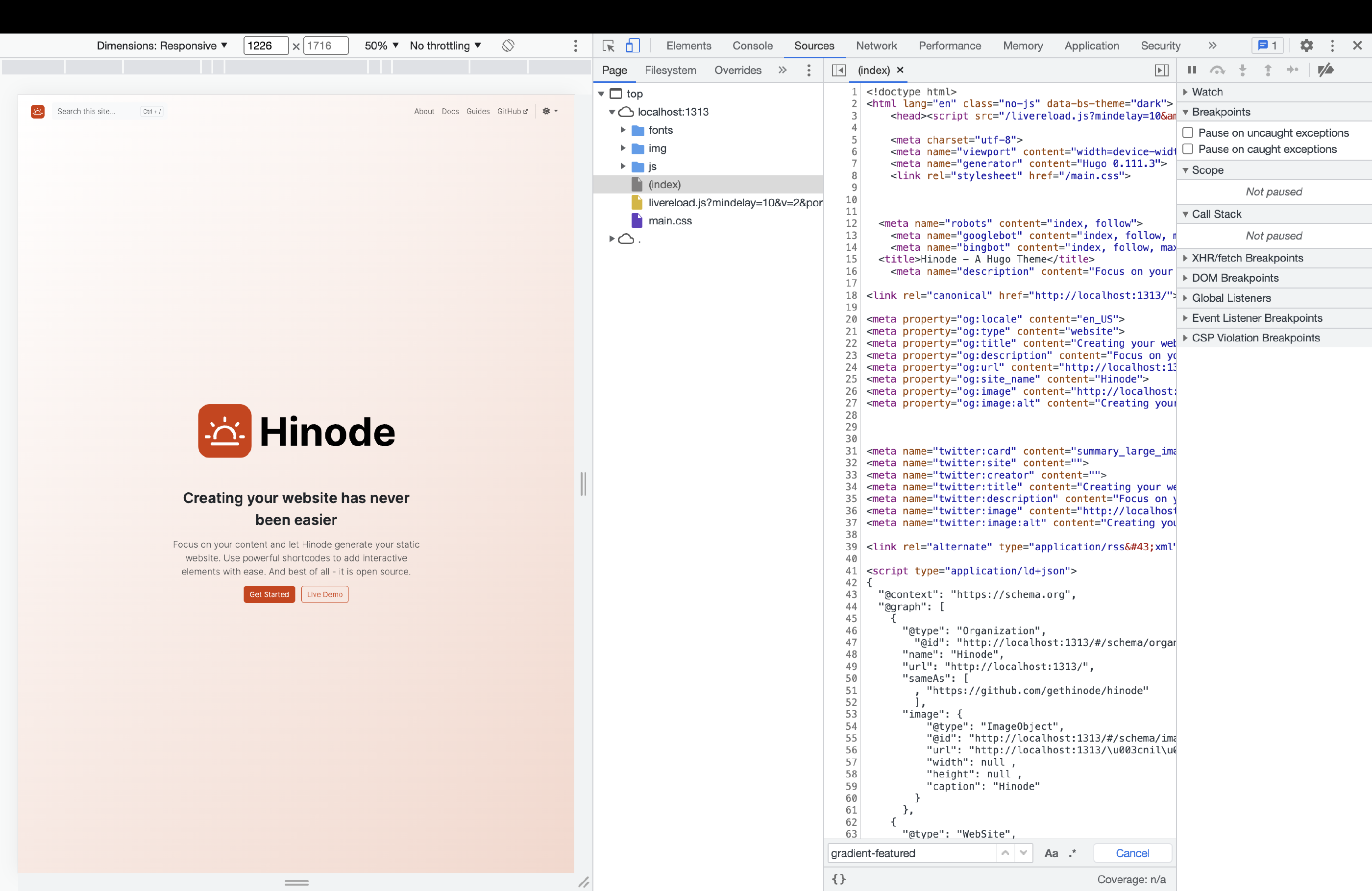
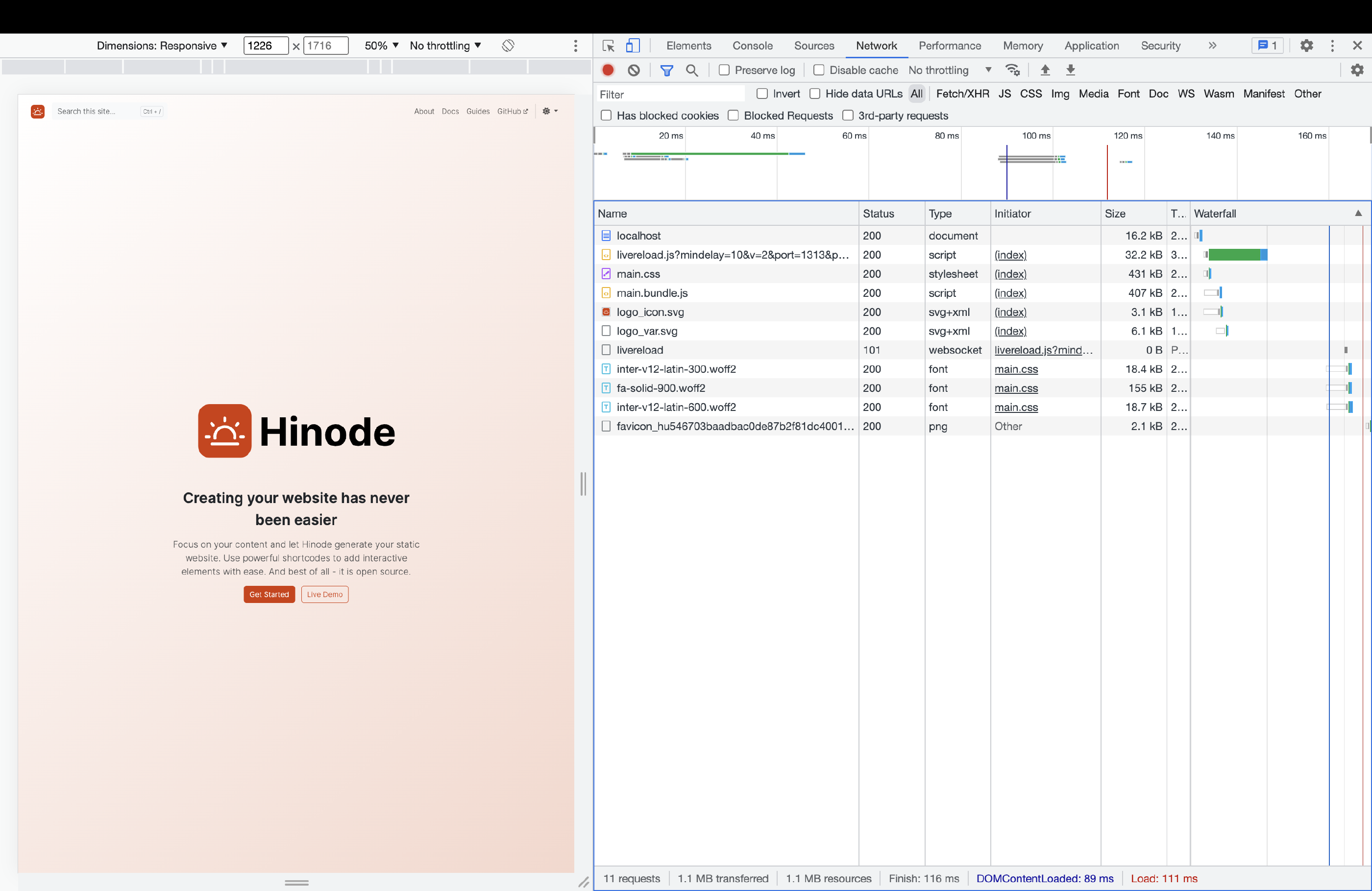
Start Google Chrome and navigate to the address of the local webserver (usually http://localhost:1313/). Next, open the Developer Tools by navigating to View/Developer/Developer Tools. The right-hand side of your screen now displays several tools, such as Sources and Network. Click on the Sources tool to review the static files downloaded by Chrome. You can use this tool to inspect the output generated by Hugo. It includes a file called (index), which is your main HTML page. Another element is main.css, which maintains the stylesheet. Navigate to the Network tool to review the size of the various assets and to study the rendering path of your homepage. Both the main.css file and main.bundle.js file are about 400KB in size.
Step 2 - Establishing the Baseline Performance
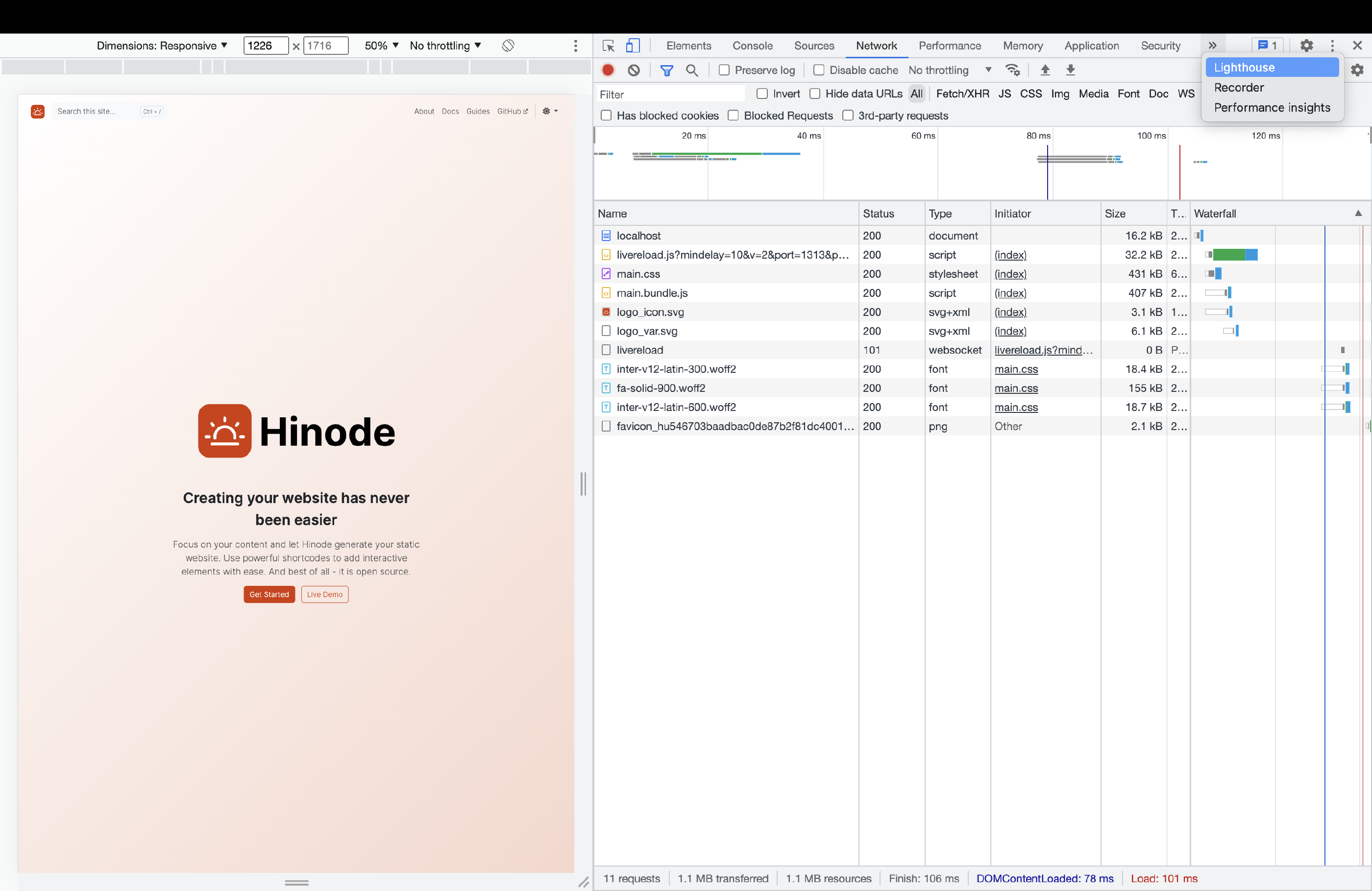
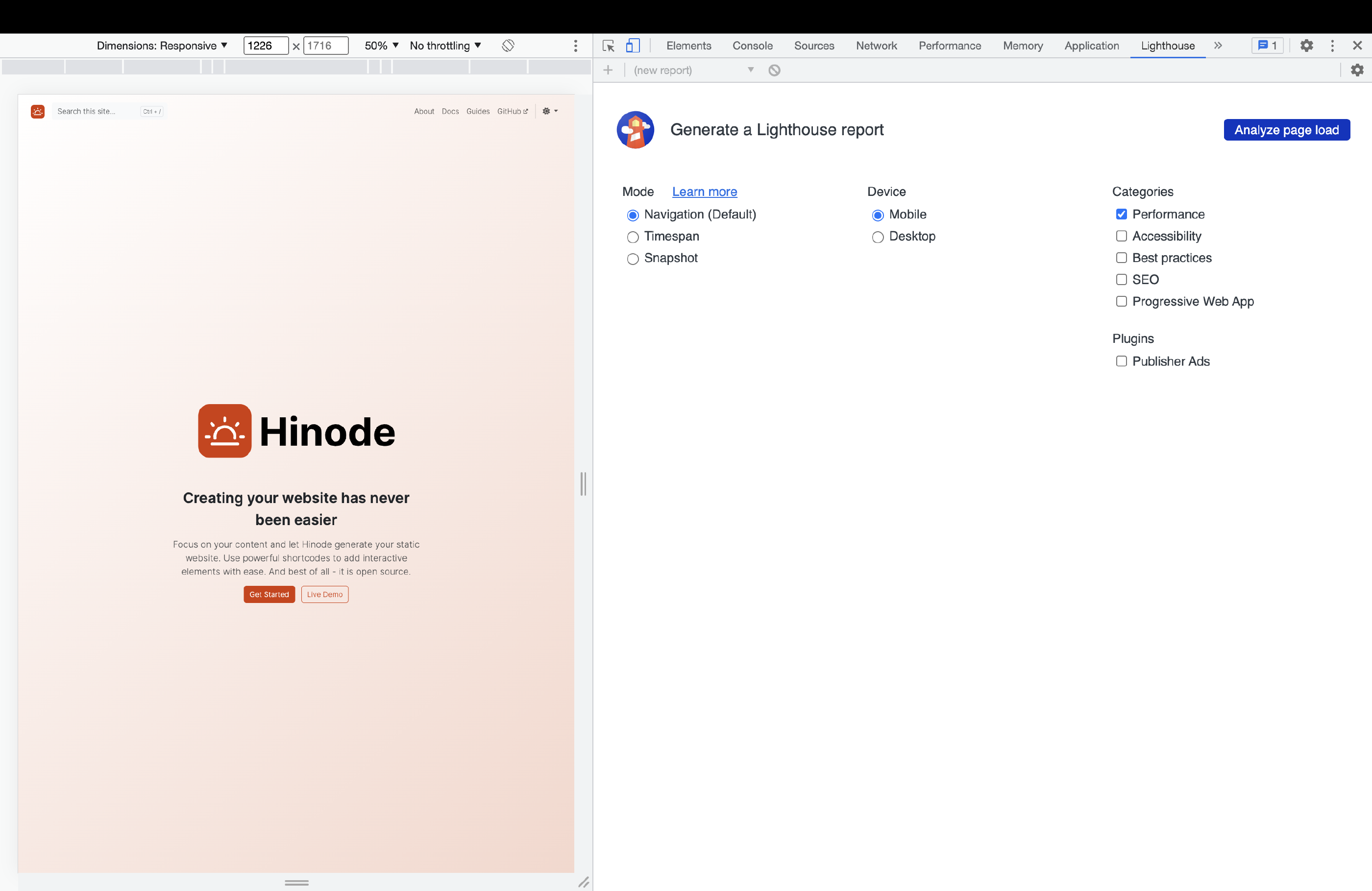
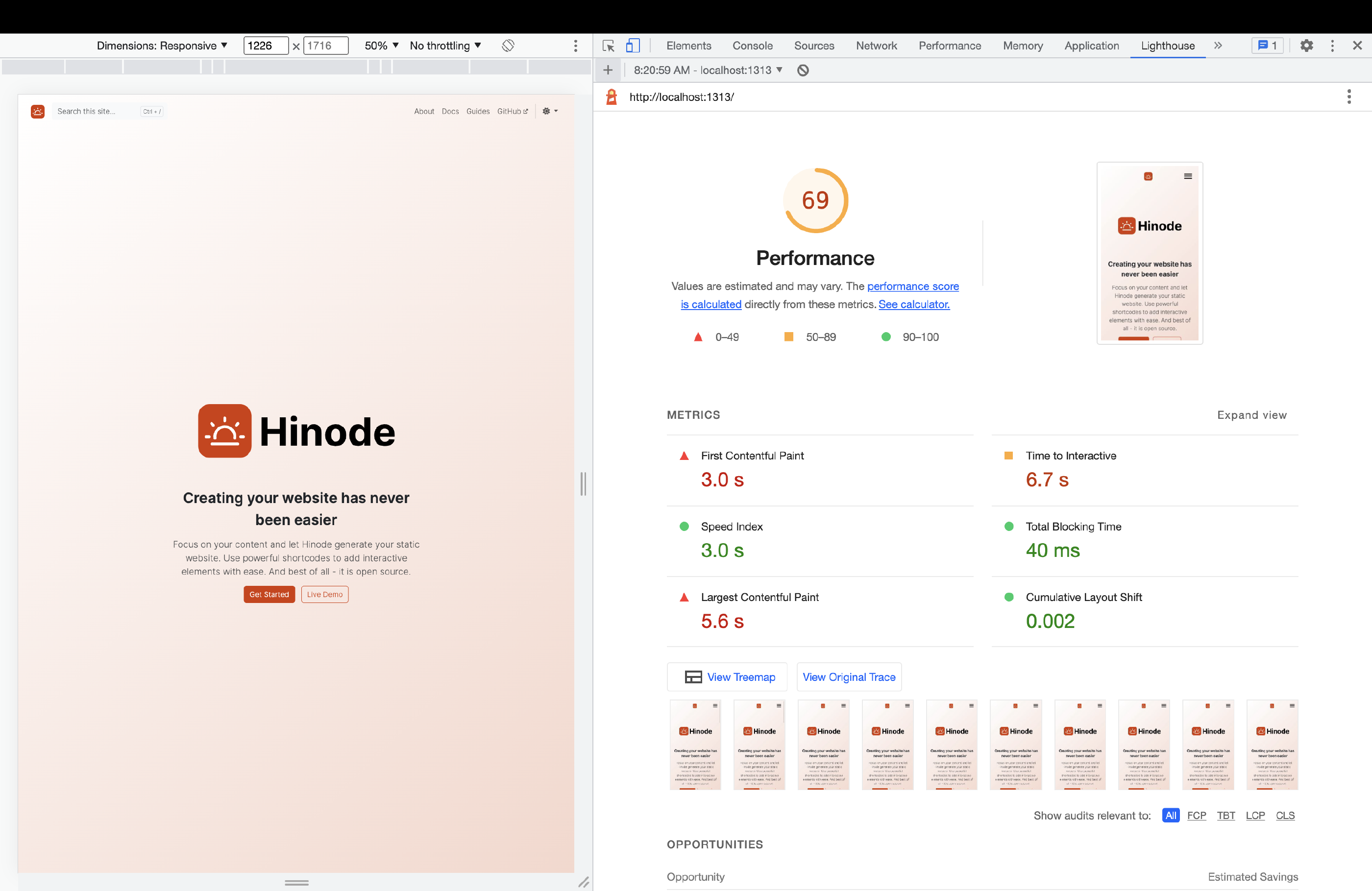
Go to the Lighthouse tool to start a performance assessment of your site. The tool might be hidden at first, click on the >> icon to expand the menu. Generate a Lighthouse report for a Mobile device and put a tickmark for Performance. Click on the button Analyze page load to start the evaluation. The Google Lighthouse test evaluates the performance of your site from a user perspective. The Mobile test simulates the rendering your site over a wireless network, and is more demanding than the Desktop test. The performance score will probably be between 60 and 80. The score is derived from several metrics, including the Largest Contentful Paint.
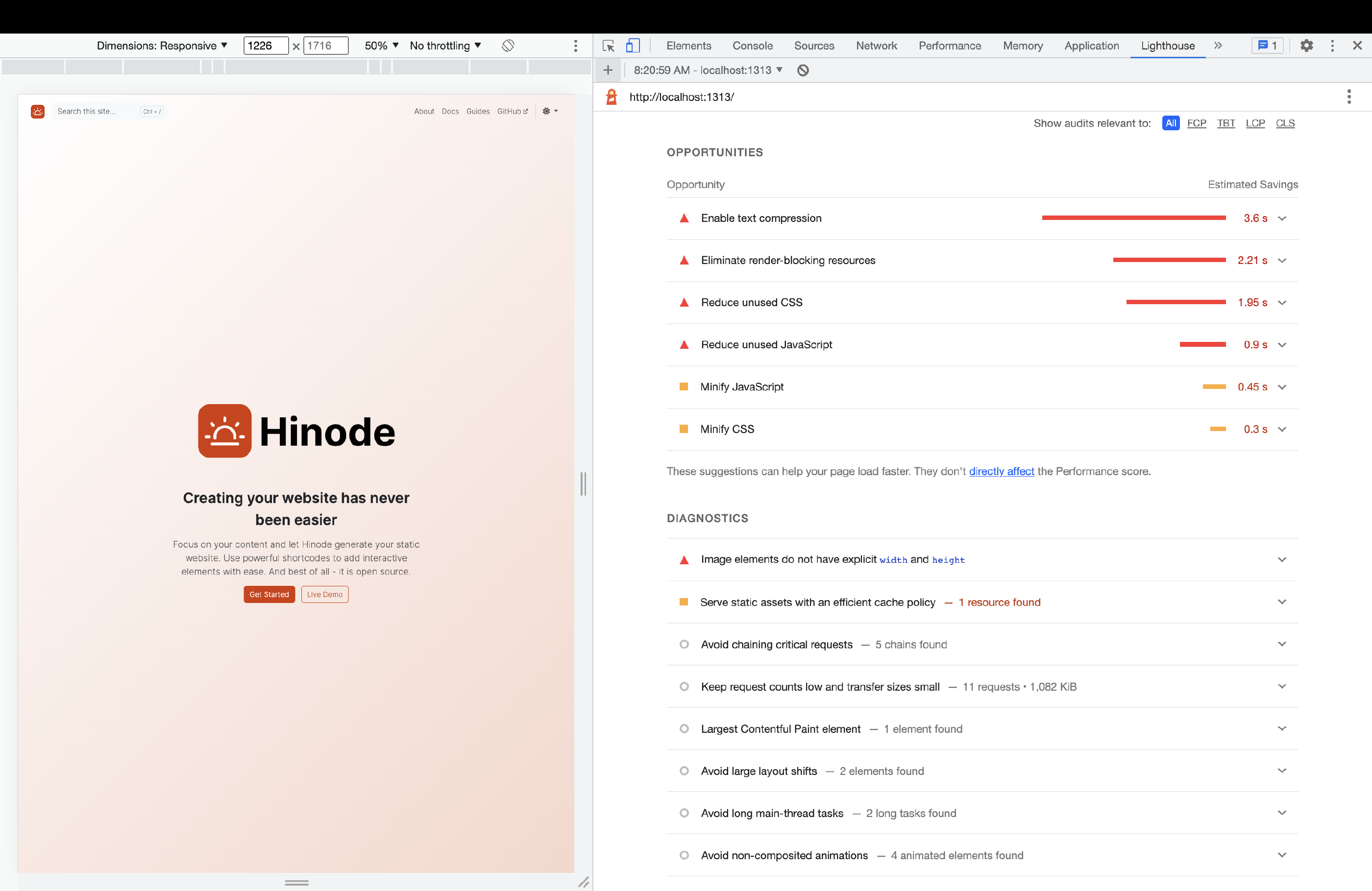
Scroll below in the Lighthouse evaluation report to study several opportunities and their estimated savings. The opportunities will likely include the following topics:
-
Enable text compression
The current web server serves several assets in plain text. Compressing text-based resources will reduce the download size of those resources.
-
Eliminate render-blocking resources
Hinode includes the
main.bundle.jsfile in the page body instead of the header by default, thus keeping this file from the critical rendering path. However, themain.cssfile is render-blocking by default - no matter where included. Reducing the size of this file will improve the page loading performance. One notable exception is the Script to Control the Site’s Color Mode , which is considered to be a critical resource. -
Reduce unused CSS and JavaScript
Both the CSS file and JavaScript file include unused styles and elements. This is largely the result of using general libraries such as Bootstrap and Font Awesome. Removing unnecessary elements will reduce the size of both files.
-
Minify CSS and JavaScript
Lastly, the CSS file and JavaScript file contain formatting to make them more readable. Although formatting your code is a good software development practice and improves maintainability, it is unnecessary for the code in production. Minifying is an approach to remove all formatting - such as new line characters, tabs, and spaces - from the code.
Step 3 - Applying Optimization Quick Fixes
The Hinode documentation site uses several optimization strategies to reduce the size of the generated assets.
-
Add responsive images optimized for multiple screen sizes and devices
Hinode supports responsive images out-of-the-box. Hinode uses Hugo to preprocess images on the server. By taking advantage of so-called image sets, the client’s browser can decide which image to download whilst reducing the download size. Review the Image Documentation for more details.
-
Serve font files locally
Font providers such as Google Fonts add font-face definitions for all the character sets a typeface comes with. By serving fonts locally you can define the exact definitions required. See the Fonts Documentation for more details.
-
Minify CSS and JavaScript files in production
Hinode starts a local web server in development mode to simplify debugging by default. In production mode, Hinode minifies the CSS and JavaScript files and does not generate any debugging information (such as source maps).
The first two strategies are already taken care of. We will now switch to production mode to evaluate the impact of minification. Stop the current web server with
CTRL-C
. Run the command npm run start:prod to start the local web server in production mode.
npm run start:prod
Environment: "production"
Web Server is available at http://localhost:1313/ (bind address 0.0.0.0)
Press Ctrl+C to stop
Rerun the Lighthouse test once your site is up and running. The performance score will likely be in the mid eighties and the minification remark will have disappeared.
Step 4 - Purging Unused CSS Elements
Although we have increased the site’s performance, we still have several remaining areas of improvement. From a build perspective, you can either limit what you put into the build pipeline, or remove unused items from the build output. The Bootstrap documentation explains how to use lean file imports , catering for the first strategy. Being a documentation site, the current test case uses all Bootstrap elements. This guide therefore focuses on purging the stylesheets as last step in the build pipeline.
Hinode uses
SCSS
files as part of its pipeline to generate the stylesheets for your site. Under the hood, Hinode utilizes
Hugo’s pipe functionality
to process its SCSS files. Since Hinode v3.6 purging is enabled by default, so restore that default by removing the temporary purge = false override we added in Step 1 (or set it back to true):
[style]
  purge = true
Purging relies on Hugo’s build statistics, which Hinode enables by default:
[build]
  [build.buildStats]
enable = trueThis build.buildStats setting generates a file hugo_stats.json in the repository root once all content and static files have been processed. It lists the HTML tags, classes, and IDs used by your site. The file is regenerated on every build, so Hinode gitignores it rather than committing it.
When purging is enabled, Hinode runs the config/postcss.config.js script, which chains
@fullhuman/postcss-purgecss
,
autoprefixer
, and
cssnano
(all already listed in your package.json). PurgeCSS removes every CSS rule that is not referenced in hugo_stats.json — meaning it is not used anywhere on your site.
Some classes are added by JavaScript at runtime (Bootstrap component states, SimpleDatatables, the dark-mode toggle, third-party widgets) and therefore never appear in the statistics. Hinode ships a curated safelist in postcss.config.js — standard, deep, and greedy pattern arrays — that keeps those classes, plus the dynamicAttributes (such as data-bs-theme) that drive the color mode. Because that safelist ships out-of-the-box, purging works without a manual tuning exercise: rerun the Lighthouse test and main.css is significantly smaller while the site still renders correctly, dark mode included.
Tip
If your site adds classes only through custom JavaScript or a third-party script (for example a consent banner or an embedded form), add matching entries to the safelist so they survive purging. External tools do not have access to Hugo mounts, so specify the original paths of any files you safelist, and vendor your modules when using them.
const purgeImport = require('@fullhuman/postcss-purgecss')
const purgeCSSPlugin = purgeImport.purgeCSSPlugin || purgeImport.default || purgeImport
const purgecss = purgeCSSPlugin({
  content: ['./hugo_stats.json'],
  defaultExtractor: (content) => {
    const els = JSON.parse(content).htmlElements
    return [...(els.tags || []), ...(els.classes || []), ...(els.ids || [])]
  },
  dynamicAttributes: ['aria-expanded', 'data-bs-theme', 'data-bs-main-theme', 'data-bs-theme-animate', 'data-transparent', 'role'],
  fontFace: false,
  safelist: {
    // Every entry below is a class PurgeCSS cannot see in hugo_stats.json because it is
    // added by JavaScript at runtime (or by a third-party library). Classes that Hugo DOES
    // emit into the markup — and therefore into hugo_stats.json — are intentionally NOT
    // listed: purge now always runs against complete, current stats (production
    // post-process; dev does not purge), so they survive on their own. In particular the
    // former `/^d-(sm|md|lg|xl|xxl)-table-cell$/` entry is gone — render-table.html emits
    // the configured breakpoint's class into the markup, so it reaches the stats naturally.
    standard: [
      // Bootstrap form validation — added by JS on submit, never in the source markup
      'was-validated',
      // Bootstrap component state classes toggled by JS (modal/dropdown/collapse/etc.)
      'show',
      'showing',
      'hiding',
      'active',
      'disabled',
      'collapsed',
      'collapsing',
      // SimpleDatatables modifier classes (set by the datatables JS)
      'no-header',
      'no-footer',
      // SimpleDatatables table rendering classes (added by JS)
      'th-inner',
      'sortable',
      'sortable-center',
      'both',
      'desc',
      'asc',
      // Hinode wrapped tables: on a DATA table, `table-wrap` / `table-border-bottom-wrap`
      // are applied in the browser by SimpleDatatables' tableRender hook, so on a site whose
      // only wrapped tables are data tables they never reach hugo_stats.json and would
      // otherwise be purged.
      'table-wrap',
      'table-border-bottom-wrap',
      // `d-none` is also applied by that hook; kept to record the wrap's dependency on it
      // (a dozen core layouts emit it too, so in practice it is always in the stats).
      'd-none',
      // SimpleDatatables search component
      'search-data-table',
      'search-input',
      // Bootstrap utilities used by SimpleDatatables
      'float-right',
      'float-left',
      // mod-simple-datatables hides the search input's label, which would otherwise repeat
      // the input's own placeholder, by passing a `visually-hidden` span as the label text.
      // That class therefore only ever appears inside the module's JavaScript, never in a
      // layout, so hugo_stats.json cannot record it. Core layouts happen to emit it too, but
      // only on pages that render a button, spinner or carousel - a site with none of those
      // would purge the class and put the duplicated label back on screen.
      'visually-hidden'
    ],
    // Classes with these patterns will be preserved along with their children
    deep: [
      // Bootstrap components that get dynamically modified
      /modal/,
      /dropdown/,
      /carousel/,
      /tooltip/,
      /popover/,
      /collapse/,
      /offcanvas/,
      // SimpleDatatables - preserve structure and all nested elements
      /datatable/,
      // Bootstrap form controls (used by SimpleDatatables)
      /form-select/,
      /form-control/,
      // Bootstrap button groups (used by SimpleDatatables search)
      /btn-group/,
      // Bootstrap responsive tables (used by list component)
      /table-responsive/,
      // Syntax highlighting - preserve Chroma classes and descendants
      /chroma/,
      /syntax-highlight/,
      /codeblock/
    ],
    // Preserve any selector containing these patterns
    greedy: [
      // Third-party library prefixes (well-namespaced, safe to use greedy)
      /^fa-/,              // FontAwesome
      /^leaflet-/,         // Leaflet maps
      /^katex-/,           // KaTeX math (note: using katex- not just katex)
      /^mermaid/,          // Mermaid diagrams
      /datatable/,         // SimpleDatatables (all variants: datatable-*, *-datatable, etc.)
      /^cky-/,             // CookieYes

      // Component-specific prefixes
      /clipboard-/,        // Clipboard component
      /command-/,          // Command component
      /search-/,           // Search functionality (includes search-input, search-data-table)
      /suggestion__/,      // Search suggestions (FlexSearch)
      /testimonial-/,      // Testimonial component
      /preview-/,          // Preview component (mod-blocks)

      // Syntax highlighting - third-party engines (Chroma handled in deep)
      /^hljs-/,            // highlight.js
      /^language-/,        // Prism/generic

      // Pagination and navigation
      /page-item/,
      /page-link/,
      /pagination/,        // Bootstrap pagination classes
      /nav-item/,
      /nav-link/,
      /navbar-/,
      /^nav-/,             // Nav variant classes (nav-callout, nav-panel, nav-pills, nav-tabs, nav-underline)

      // Bootstrap responsive tables
      /table-responsive/,  // All table-responsive-* variants and attribute selectors

      // Color mode toggle - d-none-* and d-none-inline-* (logo modes, navbar mode switcher,
      // [data-bs-main-theme="dark"] compound selectors)
      /^d-none-/,

      // Bootstrap transitions and utilities that get added via JS
      /fade/,
      /^translate/         // Bootstrap utilities
    ]
  }
})
const autoprefixer = require('autoprefixer')({})
const cssnano = require('cssnano')({
  // Default preset: structural minification (rule/declaration merging) that Hugo's own
  // minify does not do. The `advanced` preset was measured to add < 0.2% over `default`,
  // so it — and the cssnano-preset-advanced dependency — was dropped.
  preset: 'default'
})

module.exports = {
  // Order matters: purge first (drop unused rules) so autoprefixer and cssnano only work
  // on what ships; cssnano last so it minifies the already-prefixed output.
  plugins: [
    purgecss,
    autoprefixer,
    cssnano
  ]
}Step 5 - Assessing the Site in Production
As you might recall, the Lighthouse assessment also recommends to enable text compression to reduce the download size of text-based resources. Hugo’s web server is meant for local development and is not capable of compressing these assets. We will need to publish our site to a server capable of text compression to evaluate the impact of this setting.
Note
You do not need to commit
hugo_stats.json. Hinode enablesbuild.buildStats, so the file is regenerated during every build — on Netlify as well — and is gitignored by default.
The actual deployment of our site is beyond the scope of this guide. Instead, we will review the live Hinode documentation site. You can review the documentation on how to Host Your Site on Netlify , which is the web server behind the Hinode documentation site.
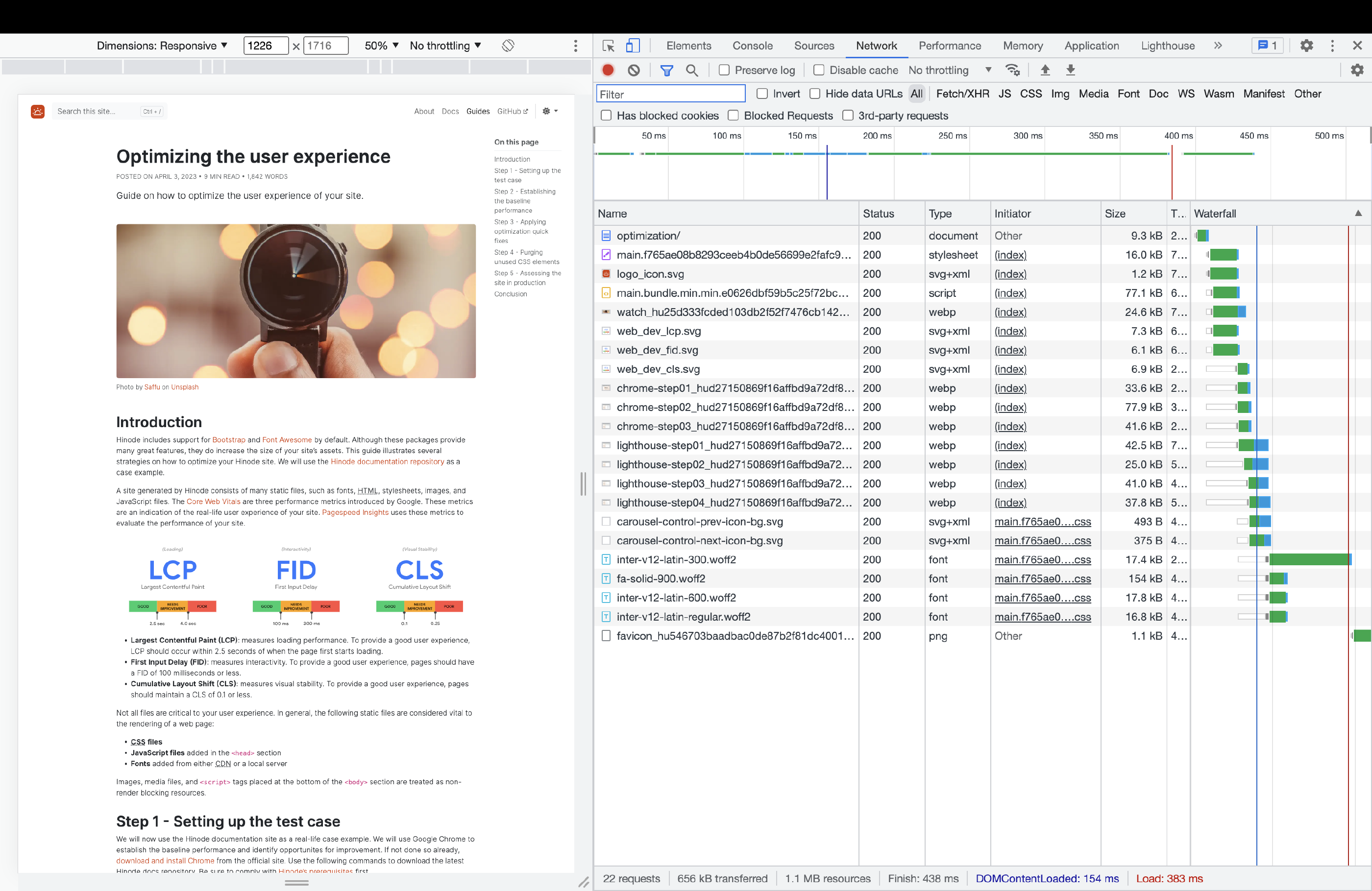
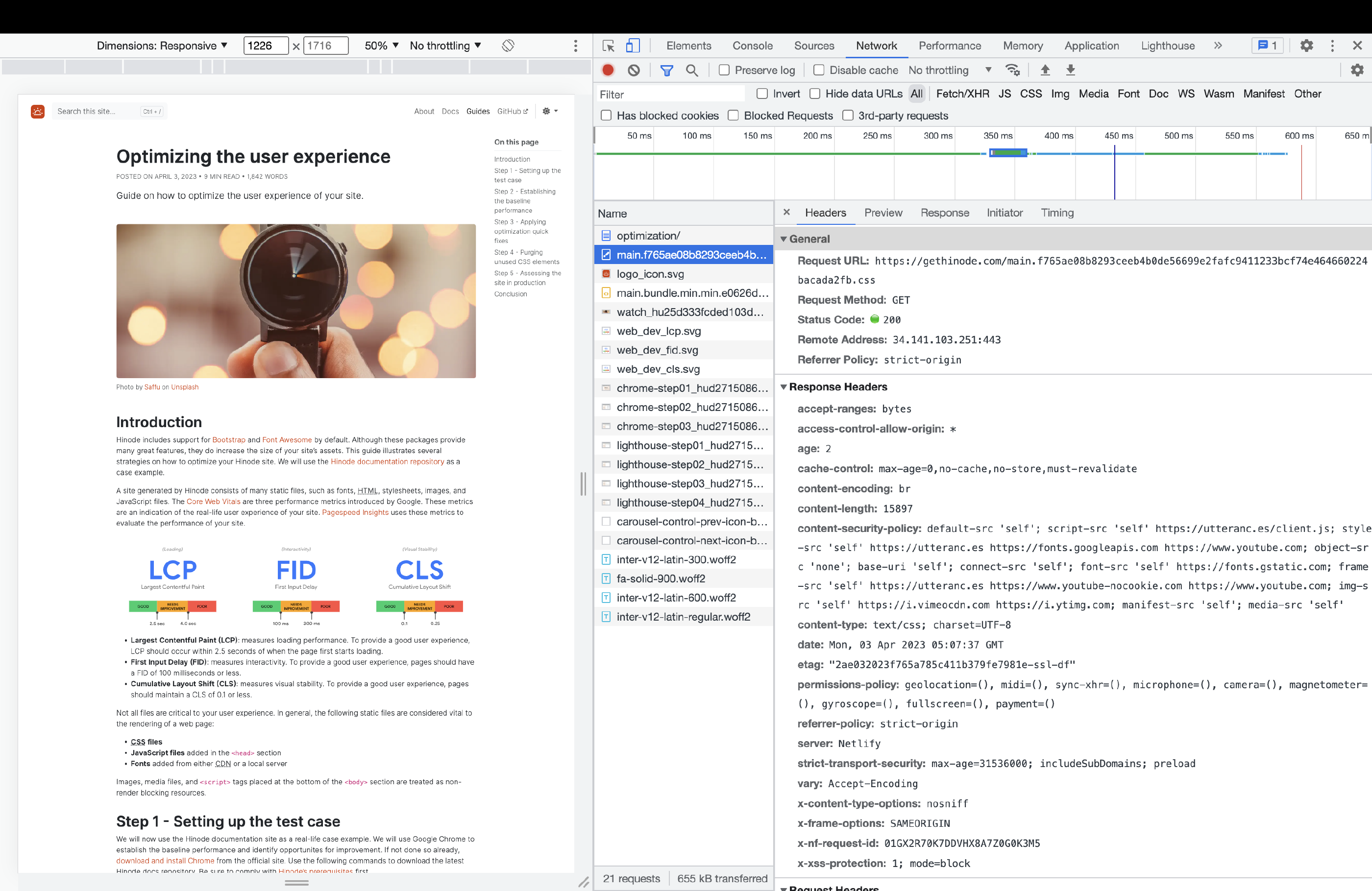
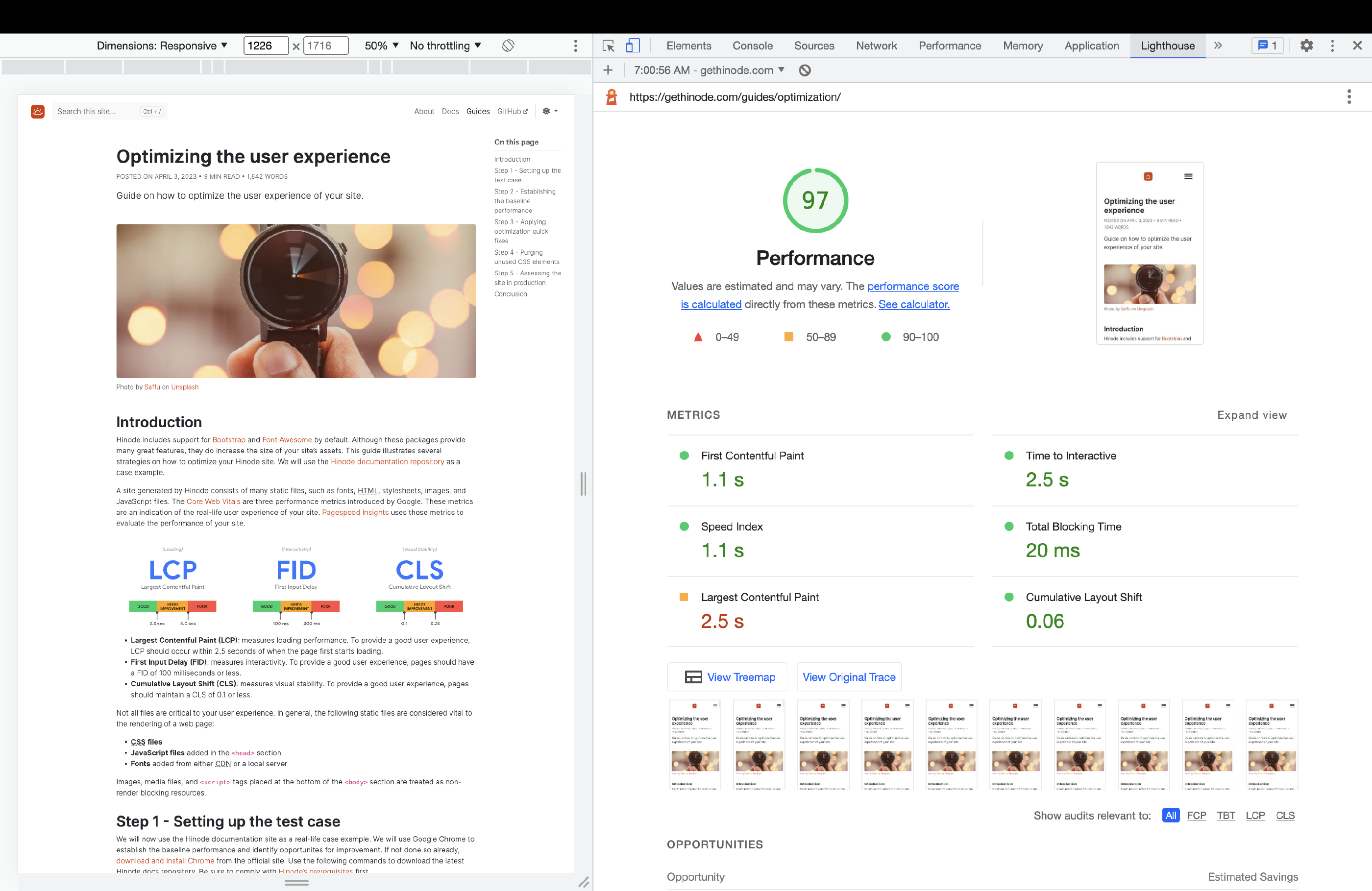
Visit the site https://gethinode.com in Chrome and open up the Development tools. Click on the Network tool and click on the main.css file. The response header will show br for the value content-encoding. This shows the file is served with Brotli encoding, which is one of the compression methods available, next to Gzip and Deflate. Siteground has an insightful blog article
explaining the different compression methods
. Run a Lighthouse test on the live site to assess the mobile performance score. It will probably be in the range 90 - 100.
Conclusion
Your site is now significantly more lean and responsive. In this guide we have improved the mobile performance score from average to good. The blog article from LogRocket provides more tips and tricks on how to further optimize your site .